Servers and tools
Add MCP servers, give them credentials, decide who can find them, and review their tools.
Admins and owners manage servers under Servers and tools under Tools.
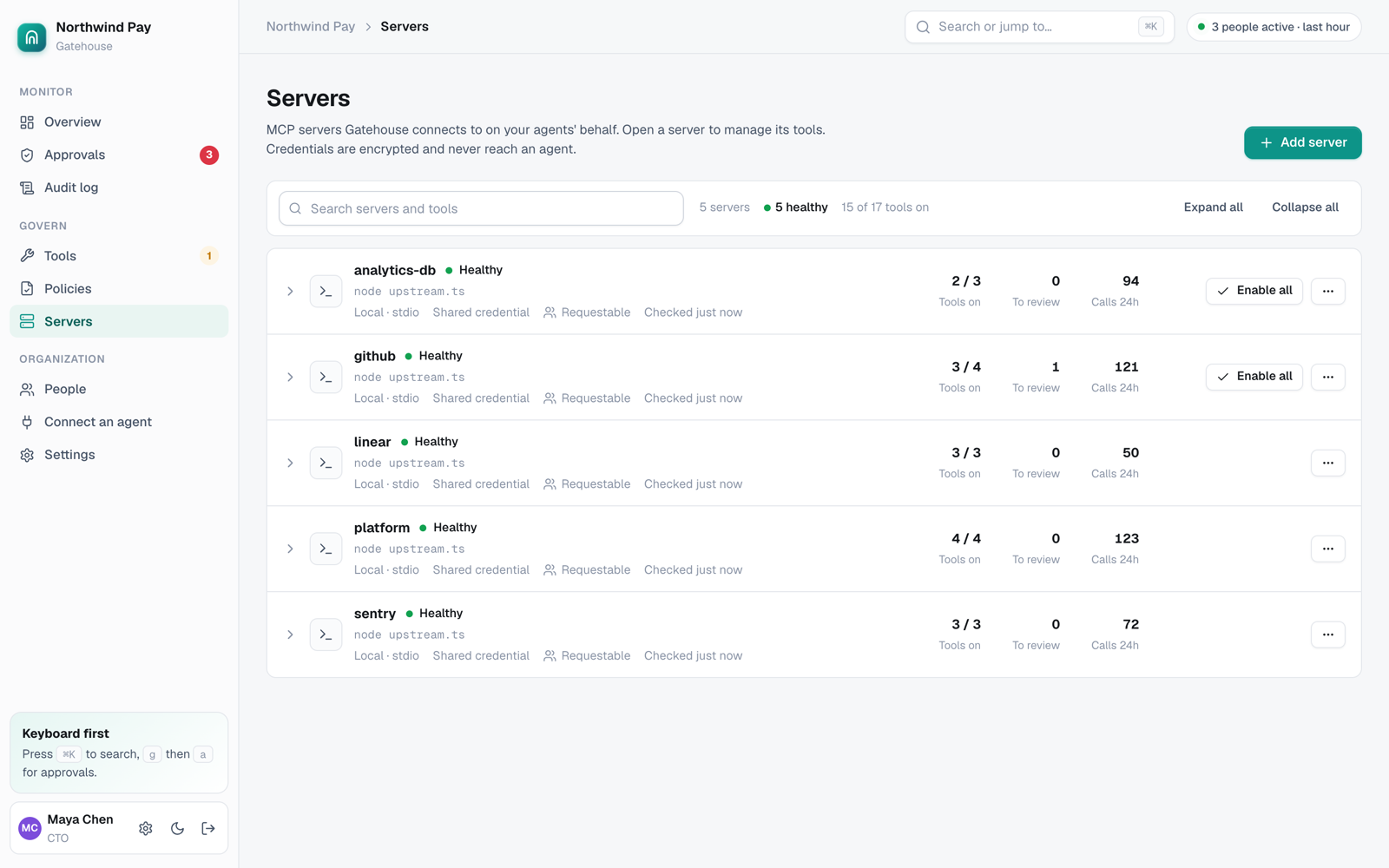
Add a server
Click Add server and pick how Gatehouse reaches it.
Remote URL. For hosted servers that speak Streamable HTTP, like GitHub (https://api.githubcopilot.com/mcp/), Linear, Sentry or your own internal servers.
- API token: paste the token the service gave you. Gatehouse sends it as
Authorization: Bearer <token>. You don't need to typeBearer. - Other headers: one
Name: valueper line, for services that use a different header such asX-API-Key.
Local command. For servers that run as a process next to Gatehouse, for example npx -y @modelcontextprotocol/server-postgres. Put secrets in Secret environment variables, one NAME=value per line. The process only sees PATH, HOME and its own variables, never Gatehouse's.
The server name becomes the tool prefix. A server named github gives tools like github__create_pull_request.
Credentials are encrypted with your master key. After saving, the console only shows that a credential exists, never its value.
Shared or per-person credentials
- Shared: one organization credential, used for everyone's calls.
- Per person: each person connects their own account under Connect an agent. An agent can then never do more than its person could do directly.
Requestable or private
- Requestable: anyone can find this server's tools with
gatehouse__list_requestable_toolsand ask for access. Good for most internal tools. - Private: hidden from anyone who can't already use it. Requests for its tools fail as if they don't exist. Use this for sensitive systems.
When a server needs a credential
If the server rejects Gatehouse's request, the server card shows This server needs a credential with the error. Click Edit, paste a valid token, and save. Gatehouse reconnects right away. Network errors show Gatehouse can't reach this server with a hint to check the URL and firewall.
Review and enable tools
New tools start in Needs review and agents can't see them. On the Tools page:
- Expand a server to see its tools and descriptions.
- Select tools and click Enable selected, or Enable all on a server you trust completely.
- Turn tools off at any time. Agents stop seeing them within seconds.
Gatehouse scans each description for text that tries to instruct the model, like "ignore previous instructions" or requests to read files and send them elsewhere. Flagged tools show a warning. Read them before enabling.
Review changes
When you enable a tool, Gatehouse pins a hash of its name, description and input schema. If the server later changes any of these, the tool moves to Changed · paused and agents can't call it.
Open the tool to see the old and new definitions side by side, then Accept change or keep it off. This is how Gatehouse stops a "rug pull", where a server you trusted starts sending different instructions. Read more in Tool poisoning and rug pulls, explained.
Refresh
Refresh reconnects to a server and re-reads its tools. Gatehouse also refreshes when the server announces a change. You can refresh from the API with POST /api/upstreams/<name>/refresh.