Policies
Allow, require approval or deny tool calls by tool, group, person and argument values.
Policies decide what happens to each tool call. Find them under Policies.
How decisions are made
- Gatehouse finds every enabled policy that matches the call.
- The strictest effect wins: Deny, then Require approval, then Allow.
- If no policy matches, the call is denied.
The agent gets a clear reason with the policy's name, so people know why something was blocked.
Parts of a policy
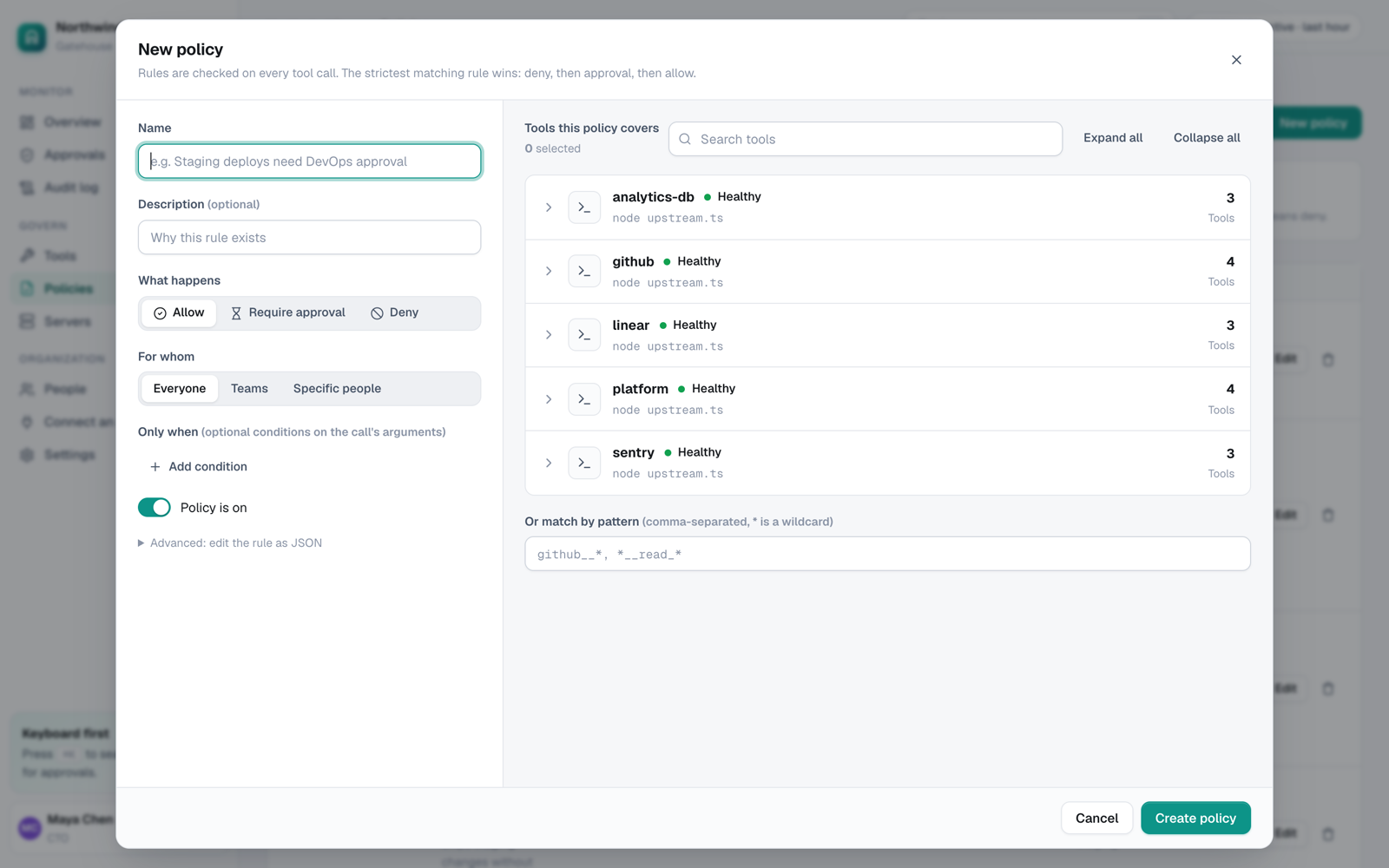
| Field | What it does |
|---|---|
| Name | Shown to the agent and in the audit log. Write it as a sentence. |
| What happens | Allow, Require approval or Deny. |
| Tools this policy covers | Tool names or patterns. * matches any run of characters, so github__* matches every GitHub tool and *__delete_* matches delete tools on any server. |
| For whom | Everyone, or Groups and people: any mix of groups and individual people. Someone matches if they are in any listed group or listed by name. |
| Only when | Optional checks on the call's arguments. All must hold. |
| Approvers | For Require approval: the group that can approve. Empty means any admin or owner. |
Conditions
A condition has a path into the arguments, an operator and a value. Paths use dots for nested fields, like options.branch.
| Operator | Matches when the argument |
|---|---|
eq / neq |
equals / doesn't equal the value |
in / not_in |
is / isn't one of a list |
regex |
matches a regular expression |
exists / not_exists |
is present / missing |
gt / lt |
is greater / less than a number |
Example: require approval for production deploys only.
- Tools:
platform__deploy_run - What happens: Require approval
- Only when:
enveqproduction - Approvers:
sre
Pair it with an Allow policy for the same tool, and deploys to staging go straight through while production deploys wait for SRE.
A Deny with conditions only blocks matching calls. A Deny without conditions also hides the tool from those people.
Test a policy before it matters
The Test a call panel runs a pretend call through your policies. Enter a person's email, a tool and arguments as JSON. Gatehouse shows the decision, the winning policy and every policy that matched. Nothing is executed.
Policy as code
Keep policies in version control and apply them from CI:
npm run cli -- export-policies > policies.json
npm run cli -- import-policies policies.json
Or over the API with an admin's personal token:
curl -H "Authorization: Bearer $GATEHOUSE_TOKEN" https://gatehouse.yourcompany.com/api/policies > policies.json

curl -X PUT -H "Authorization: Bearer $GATEHOUSE_TOKEN" -H "Content-Type: application/json" \
  --data @policies.json https://gatehouse.yourcompany.com/api/policies
PUT replaces every policy in one transaction and records the change in the audit log. A policy looks like this:
{
  "name": "Production deploys need SRE approval",
  "effect": "approve",
  "match": {
    "tools": ["platform__deploy_run"],
    "teams": ["engineering"],
    "users": ["contractor@partner.example"],
    "conditions": [{ "path": "env", "op": "eq", "value": "production" }]
  },
  "approverTeam": "sre",
  "enabled": true
}
In JSON, groups are listed under teams (the name from earlier versions) and people under users, by email. A policy with neither applies to everyone. When you rename a group in the console, Gatehouse updates every policy that names it.